We have a Microsoft Word template that contains macros, which was working fine but all of a sudden in the last few days, whenever you invoke the template you get the following error:
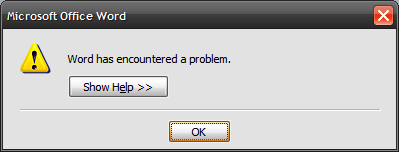
Word has encountered a problem.
If you open the template file instead of invoking a New document from it, you get a more detailed error:
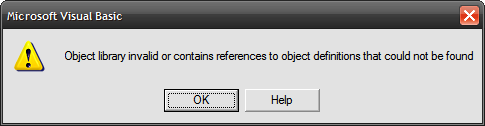
Object library invalid or contains references to object definitions that could not be found
This was obviously due to a change in our systems. After googling awhile, I found this article which explains that the error can happen after installing a certain Windows update: http://support.microsoft.com/default.aspx?scid=kb;en-us;932349. The update installs new versions of certain Visual Basic 6.0 Runtime files. The article provides a link to a cumulative update rollup which I tried, to no avail.
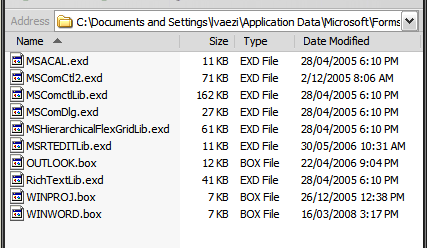
Upon further investigation, I found that the files had been updated fine. However, there is a corresponding EXD file that is created for each of the runtime files, when you use the controls provided by the runtime files in the Visual Basic designer. When the runtime files are updated, these EXD files are now invalid and hence this error occurs. To fix the error, you need to delete the EXD files and they will be re-created as needed.
These files should be located in the folder: %APPDATA%\Microsoft\Forms\
On Windows XP, it is usually located in:
C:\Documents and Settings\%USERNAME%\Application Data\Microsoft\Forms\
And on Windows Vista/7:
C:\Users\%USERNAME%\AppData\Roaming\Microsoft\Forms\
It was easy enough to fix for myself, but others were having this problem – so I made a script that given the username deletes the files. I had users run the script (you can post it as a link on a webpage and as long as you use Internet Explorer and low security settings it can be invoked from there):
// Function to delete EXD files from user Application Data folder
//     This is to resolve an issue with Word VBA macros that use VB runtimes, which the EXDs point to
function deleteEXDs(){
    var strToPath = "%appdata%\\Microsoft\\Forms\\";
    try {
		var fso = new ActiveXObject("Scripting.FileSystemObject");
		var shell = new ActiveXObject("WScript.Shell");
	}
    catch (err) {
        alert("Could not create ActiveXObject.\nThis script should be run from Internet Explorer, \n" +
		      "with low security settings (e.g. Intranet or Trusted Sites).");
		return;
    }

    try {
		var appdata = shell.SpecialFolders("AppData");
		var strToPath = appdata + "\\Microsoft\\Forms\\";
		var fldr = fso.GetFolder(strToPath);
		var noEXDs = true;

		for (var e = new Enumerator(fldr.Files);  !e.atEnd();  e.moveNext())
		{
			if (fso.GetExtensionName(e.item()).toLowerCase() == 'exd')
			{
				noEXDs = false;
				try {
					var filename = new String(e.item());
					e.item().Delete();
					alert('DELETED ' + filename);
				}
				catch (err)
				{
			        alert("Error - could not delete " + e.item() + ".\nDescription: " + err.description);
				}
			}
		}

		if (noEXDs) alert('No EXD files found.');
    }
    catch (err) {
        alert("Error - could not clean up EXD files.\nDescription: " + err.description);
    }
}
Edit 26 Oct 2010:
Thanks for all the positive comments!
I noticed that this solution of deleting the EXD files is now also being mentioned in the Microsoft KB article: http://support.microsoft.com/kb/957924/en-us
Edit 1 July 2011:
Thanks to the comment below by Paul M Edwards, I updated the script to use the AppData environment variable, so it should now work with Windows newer than XP.
I was getting this error message when trying to launch a custom vb routine in AutoCAD. I found the exd file in the forms folder just as your article describes. Now the error message is gone! Thanks Lessan, you are awesome!
Thank you!
It helped me a lot.
I spent a lot time searching for a solution, I tried your solutions and that works!! you have saved my life.
I got this error running an Excel VBA add-in after installing an Office 2010 component on top of an Office 2007 installation. Thanks a lot for sharing, it helped.
This worked perfectly after installing Office 2010. Microsoft should add this routine to the installation package. Thank you very much for sharing this.
This was a big pain as one of our PowerPoint add-ins mysteriously stopped working, thanks for the article!
I have Windows 7 and have also recently installed Office 2010 as an upgrade from 2007. Where would the .exd files be in this case? Do you delete the .box files too or just the .exd?
Thanks.
Big thanks for your advice!!! It helped me a lot. After installing Office 2010 over beta 2010, I started to have this error. Finally I deleted everything form “…\forms” folder and no problems anymore.
This post was hard to find, but WELL WORTH THE SEARCH! I was having this problem after installing Office 2010. I was unable to open word document attachments while still in outlook until I applies this fix. Everything works as it should now, thank you!
This was great advice! The “object library invalid” box was coming up every time I started or shut down Word 2010. I deleted the one EXD file I saw in the folder (MScomctlLib.exd) I left the .box file (winword.box) alone. Now no problems. Thanks!
Fantastic!!! it works!
thanks man. you did helped me
Thank very much, it is a great help to me!
To Sarah above, you should be able to find the exd files under:
C:\Users\Your User Name\AppData\Roaming\Microsoft\Forms
Just delete the exd files, not box files.
Thank the author again for saving our lives.
Great! This fixed my Excel 2010 problem!
Deleting the .exd files fixed Reuters 3000 Xtra (Power Plus Pro) on Excel 2003. Thank you!
Thanks! It helped me so much!
Awesome. It works and its very simple. Hats off to you.
Thank you kindly….Worked perfectly as I was having trouble opening attachments…
Thank you! Solved my problem
You ‘re my hero.
Thank You very much!!!
Deleting the .exd file fixed SAP BPC (OutlookSoft 5.0) on Excel 2003. Thank you!
Thanks so much for the fix. I am so glad that I found your site because I was using an add-in for my statistics class for Excel and this fix saved my life.
Briliant solution!!
I work as IT specialist @ AkzoNobel and just made a PC user very happy with your simple but effective solution.
Thanks!
It helped a lot.
Thanks man..
awesome. Was having series of problems importing to SharePoint 2010 to create list. This was the second half of the problem. Grazie!!
Many thanks for the top tip – I installed Camtasia on my machine and it stopped some Excel VBA working. Deleting the .exd’s fixed the problem.
Thanks so much, I was working with Oracle BI Publisher when I download OneNote 2010 on top of Office 2007. I wasn’t able to load xml data until I tried your fix. Have had a ticket with Oracle for days with no solution offered.
Hi,
My case is different, the error message I got is “the subject is not trusted for the specified action”. Deleting exd’s
did not resolve my problem.. kindly help he on this.
Thanks a lot fellow programmers… God bless!
Gil
Sorry Gil, I haven’t come across this problem yet myself. A quick Google search came up with this link that seems promising.
I searched for the error text you provided: “the subject is not trusted for the specified action”
thanks everyone
Hi guys,
I have tried this fix in 3 different computers that were having the issue when running Excel 2003, and it worked perfect.
Thanks
Thank you very much. it solves my problem in weeks.
Bless you!!! (And Sean above, for giving the slightly different path in Windows 7.) You have saved us from ongoing agony!!! Thank you! Thank you! Thank you!!!!!!
Thank you, man!
You saved the day! 🙂
Pingback: "Object Library invalid or contains references…" in Excel VBA with DatePicker - Question Lounge
Awesome! After several weeks having to work on a Win32 VM because my new Win764 box refused to run my VBA macros in Corel DRAW… you became my savior. Hail Lessan! XD
Works! Thank you!
Thank you! I have had this problem with Office 2003 for many months, without finding a solution, until now.
I had three EXD files in there, and one was zero bytes in size. I also had the exact same error message when starting up and shutting down Excel. Fixing that involved deleting an add-in file (.XLA) in:
C:\Documents and Settings\USER\Application Data\Microsoft\FormsExcel\XLSTART\
The Add-in file was dated 2004, so I guess is was not the *source* of the problem, but it does make the startup error go away so I can work out what needs to be reinstalled.
Awesome!!!! thanks a lot!!!
I had some macros running on Excel 2007, updated to Excel 2010 and was having this annoying problem, perfect solution, get rid of the exd files.
Thanks for sharing this. I have this problem after installing Office 2010 (from 2003). When I click the Help button on this error Microsoft does not provide any solution.
Excellent post. Fixed my problem just fine. Don’t you just love MS updates…
Simple solution. It worked. Thanks…. 🙂
well, it actually doesn’t work for me…
I just got a new laptop and the excel macro that was working with no issue on XP/Office 2007 on my old laptop does not work on XP / Office 2007 on the new laptop… this is quite annoying
I have tried deleting all the *.EXD files
Any other idea?
Absolutely great!
I had an Excel 2007 file with pages of VBA code + xml for a custom ribbon. It stopped working when I installed Excel 2010. I could not find the problem. I deleted the .exd file and it is all fine now. Many Thanks.
I have discovered that the Object Library Invalid error can result from another cause. I read these posts, and removed the .EXD files, and got no improvement. Then I went back to my code and examined it in detail. I discovered that I had a button called BudgetIndividual, with a procedure named BudgetIndividual_Click. In another module, I had a subroutine called BudgetIndividual. This caused no problems.
But when I copied the BudgetIndividual procedure into the sheet module that contained the button with the same name, I got the Object Library error. This, as you may have noticed, is not an informative or helpful error message. And I have proven that it can have multiple causes. In this case, all I had to do was rename the procedure to BudgInd, and all was fixed!
Thanks Larry for posting the tip – I’ll keep it in mind, and it’ll probably help others who stumble upon this page.
Really thanks for the guideline.
It is a very very very x999 worth lesson.
Excellent Solution with the explaination of the problem.
Worked great for me, I had been breaking my head to solve the problem.
Just need to get the IT guys to push this to all machines in the corporation 🙂
Aweosme…it worked for me! Thanks for all your help!
YOU SAVED MY LIFE……This stuff works!!!!
OMG, you did it!! We were convinced we were going to have to go back to an older version of Excel. You saved the day. Thanks!
Ohhhh man ,,, thank you soooo much ,,, it works perfectly
You are just Great.. thank you man.
Thnx buddy,
it work for me in VBA.
You are simply awesome. Thanks a lot.
Got my Word based program back up and running again….thanks!
Thanks a Lot !!!
Perfect! Thanks a lot. You saved the day.
Great! Worked for me as well! I had Office 2003 and I upgraded “only” Outlook to 2010. After that I started getting the above error at start-up for Excel. After I read your article, I deleted the MSComctlLib.exd which was the only file in that path and then restarted my Excel. The error vanished and I also saw that there was a new file created by same name “MSComctlLib.exd”.
Thank You So Much!!
OMG! Thank God i found your thread, same warning was also fixed! Thank you! 😀
This is a great tip which has been very helpful.
One addition I would like to make is that the following path will provide the correct folder location regardless of Windows version or username by using an environmental variable:
%APPDATA%\Microsoft\Forms
Instead of “USER” in the paths, you can use %USERNAME%, i.e.:
On Windows XP, it is usually located in:
C:\Documents and Settings\%USERNAME%\Application Data\Microsoft\Forms\
And on Windows Vista/7:
C:\Users\%USERNAME%\AppData\Roaming\Microsoft\Forms\
Thanks Paul, I updated the post.
You are a genius! I hit this minefield when upgrading to Eggshell 2010 and my addin in 2003/2007 fell over spectacularly. Thank you 10^6.
Trevor
Thanks a bunch mate
Worked like a charm in Win 7 – thanks very much.
Thanks so much for this. This “works a treat” as they say across the pond. How do I invoke the script? What do I need to save it as?
Excellent, thanks a bunch !!
You can save the script as a javascript file (e.g. script.js). If you then double-click on it it should work.
You can also link to it from a web page, and if you are running Internet Explorer with low security settings when you click on the link the script will have access to the local filesystem and do what it needs to do. Of course, the low security settings should only be used in a protected environment otherwise it will expose you to dangerous scripts on the internet. So you would add only the webpage you have hosted it on (preferably on your intranet) to the Trusted Sites group, or something like that.
Hello;
Greate your solution is working fine … Thanks very much genius!
Dear Lessan… from now on you’re my new personal hero. Thank you very much!
Thank you very much. I wanted to destroy my computer.
:))))))
Works a treat, thanks for sharing!
You cannot imagine how much trouble I’ve had with this in the past,thank you sooo much.
I do search engine optimization for Kona, Hilo, and Waimea on the Big Island in Hawaii.
Very Nice. This error appeared to me when I switched from Office 2000 to Office 2010. Now by deleting the EXD I do not have the problem anymore. However hope that deleting this EXD will not affect another thing,
Sheers
Thank you very much!!! You saved my project!
Thanks for this post!
It was really helpfull, and easy to understand.
Hi! I’ve received the same error, but with no previous Excel upgrade. I have been using Excel 2003 on Win XP for a while.
Only see the error when I run a particular XLS that uses lots of macros and DDE to communicate with another application. The rest of the XLSs, even those with macros,work just fine. After I receive the error message, VBA Editor stops at the definition of a sub() function.
Any ideas? I’ve tried already deleting the .EXD files, to no avail. Thanks!
pbertu
Awesome! Thank you ! Thank you! I found this site that exactly gave me the resolution!
Thanks dude!
Thank you so much! You are my hero!
You have saved my sanity!!! A quick deletion of a single EXD file did the trick! Unbelievable…
Works like a charm. Thank you!
WoW you made my day. Worked like a charm
Thank you Thank you
Thanks man, saved my day too. Bloody microsoft should do that when they run the installation routine of a new office version.
Thankyou so much! Finally solved this. I too was looking at going back to an old version of Excel to solve this problem. Found nothing of value in solving this on Microsoft sites (without your references).
It really works fine. This error happened after upgrade from office 2007 to office 2010. After googling in italian I found the solution here, in English. Thank you very much. My head is safe (it was my boss’s pc!)
Nailed it. Thanks!! Was troubling me since last couple of weeks.
Great!!! It really did perfectly 🙂
which exd files need to be deleted? I see a bunch of them but i also see some box files. do they need to be deleted too?
Thanks a lot. its really a great work.
YOU ROCK!!!
Thnx…. It worked for me..!
This worked like a CHARM…thank goodness. I installed MS Project 2010 on 01/22/2012 and had tried uninstalling and going back to 2007 and nothing worked. I deleted the *.exd file and now MS Excel works perfectly.
It’s work! Thanks so much! 🙂
Thank you for this solution. The moment I deleted these files all my templates worked fine again.
Thank you very much – worked a treat!!!
Lessan,thank you so much,I did a lot on seach solution for my issue,but only your solution does work and it is very simple,thank you so much again and god bless you
Thank you very much. I wasted 3 hours trying to find an answer for this problem. Google, bing, windows support, etc, and others and not even Microsoft support for office 2010 has a clear answer. I red several website but nobody gave me a simple answer the works, until I found your solution!!
One suggestion would be to post your solution in youtube or other high traffic website, since I am sure there are hundres of people with the same annoying problem, that would benefit from your solution. Also Microsoft should issue a warning for that specific update so people do not update the one that installs new versions of certain Visual Basic 6.0 Runtime files.
Thank you so much.
Thank you so much – this worked perfectly and now my office programs open without the error message.
WOW! You’re a genius. :)) Thank u so much! I’ve been very irritated with that error until i found this solution. I don’t know how to thank u for that.
Thank you so much!
I can’t say where I work, but our tech people were going to re-image my entire machine because of these errors! Wonder why they didn’t do an Internet search to find your simple & elegant solution!
You have saved me from some major headaches! Thanks again!
MEC
Thank you for the information. It was an easy fix and worked with my Outlook as well
Many thanks for this solution Lessan! Worked perfect. Did not use the script as only 1 machine had this issue.
I used the manual method and this worked. However I wanted to save your script but I do not see what file extention this is supposed to be save as. It this a batch script or some other language?
Thanks for the post and the help.
You can save it as a .js file, as it is JavaScript (or JScript I guess).
Thank you for your solution!
It is solved problem of pop up message “object library invalid or contains references to the object definitions that could not be found” after deleting EXD files.
Thanks
Murali
Hi,
Just got this error after Windows Update installed various updates to MS Office 2007 and some system updates for Windows 7 2 days ago. Tried to restore the system to earlier time, uninstall recent updates a.s.o. Then I googled the text of the error message in Word and found this solution. It worked “from scratch”.
Thank you very much for this help, as I was not able to find any solution around.
Nice evening 🙂
WJ
it works! thanks.
..Thanks much! 🙂
You saved my day!! Man, you are great. Thanks a lot
This worked perfectly for me. I had ArcGIS 9.3 installed and got the same error after that ms update…too many vba code not to get me worried. Thanks
You are genious man………………GOOOOOOOOOOD Work.
Appreciate your help………….
Thank you…………
On Windows XP, EXD files are usually located in:
C:\Documents and Settings\%USERNAME%\Application Data\Microsoft\Forms\
Thank you so much! Now I can use my excel spreadsheets without errors!
Thanks!!! Very Helpful.
Thankfully, yours was the first website I tried and it worked. No doubt saving me hours of frustration. THANKS!
Thanks! Just saved my day! It was MSComctLib.exd … Seems that the last Windows update MS ran was problematic since I am not the only person today with this problem.
Could you please let me know how to save the script and run it. i tried to go the forms folder but could not find any exd file
it saved my day!!! thanks for the quick resolution
Thank you very much! Ran into this problem today and was getting really worried that my (critical) Excel-file was corrupted. You saved me hours – really appreciated!
My cousin has the same problem, i’m going to try to solve the problem. Is it enough to save the script as .js file without any change in it and will it work on double click on it?
Used it today Lessan, worked great. Writers are happy. Thanks.
Vissa OS
More technical information from 2009:
https://blogs.msdn.com/b/vsod/archive/2009/06/05/visual-basic-6-controls-stop-working-after-security-advisory-960715.aspx
Used it today. Worked perfect. Thx. a lot !!
hallo it helped me also.
thank you so much
whow this was easy – thanx. it was so frustrating
Yes, if you copy the script and save it into a .js file, then double-click on it, that should work.
Easy when you know how! Thanks very much. What a quick fix…
Pingback: Pendiente Insertar control progressbar en un formulario excel 2007
I had to use this fix twice recenlty on a Windows 7-64 box with Office 2007 on it.
Other similar computers did not have this problem.
The only thing that make this PC different is that it has Exact Globe 2003 installed – Dutch bookkeeping software.
YMMV.
I’ve added a short to C:\Users\%USERNAME%\AppData\Roaming\Microsoft\Forms on the user’s desktop so he can remove the offending template files himself next time this happens.
Thank you so much. You explained how to solve this problem in plain English!!! Yay! My software now works…you’re brilliant and I’m a computer novice as you can probably tell!
Thank you!!! this worked great.
Sorry but this didn’t work for me. What else can I try? Appreciate the help.
Addendum to my previous post. Out of 4 affected PCs, the solution worked for 3 of them.
Thanks – this was driving me mad as the macro was working fine for a different user on my machine. Had done a system restore & it fixed it but then the update was reapplied & it broke again.
Thank you so much for this solution. I had to fix 5 machines that had this issue and the users who suddenly had this error were going into a frenzy as they could not work on their files!!!
It didn’t work, whatever I tried to do. How to make it work? How to make the previously mentioned hyperlink with ie? Please answer at my mail josephs@net.hr.
Thank you very much. Such a simple solution and now my excel works fine again.
Perfect!. Deleted ‘MSComctlLib.exd’ present in the ‘Forms’ folder mentioned in this blog post and it worked.
Thanks a lot.
Thank you for the deleting exd files suggestion. it worked perfectly. this error has been driving me crazy.
Thanks for this fix!
It is very useful!
I work in an IT helpdesk and I have just resolved this issue on a laptop for a user .
Thanks to this site, I did not have to re-install Office and did not have to dispatch or anything useless thing!
Thank you for the great tip – I had to do some head scratching when I got questions from some people that had downloaded some stuff from my http://ramblings.mcpher.com site and hit this exact problem following a windows update.
Luckily I found your post, and reproduced the advice here http://excelramblings.blogspot.co.uk/2012/04/what-do-if-you-get-dreaded-office.html
bruce
Thank a lot to you,it works fine .
Great
Perfect! Thanks!!
Great great great, thnx a lot Lessan!!! My excel is running smooth again 🙂
Thanks Deleted .exd files solved it.
There are no .exd files in my system, searched by file extensions. Also searched for the location mentioned by you C:\Documents and Settings\%USERNAME%\Application Data\Microsoft\Forms\, but my machine does not have Microsoft\Forms folders in AppData. It has the following folders – C:\Documents and Settings\jyarida\AppData\LocalLow\DataMngr and there is only 1 file in DataMngr it is {7CA1F051-A4FB-4143-B263-02B41E571EED}, not sure if deleting this would result in some adverse outcome, therefore I didn’t delete it. Thought if I run the script you gave may fix the problem from all locations (if not from the location you mentioned), can you please tell me how to run the script? Or, is there any other solution?
Thanks a lot!
Man … Its wonderful solution…. As other one said , it saved my life …literally…
Thanks a lot…
Prasad
Thanks so much for this quick fix. You’ve saved me hours trying to go through our IT or Helpdesk answering a hundred useless questions and then getting put off with “we’ll get back to you”.
Thanks a lot for this quick & easy fix, which was driving me crazy. Another postive feature of being part of internet comunity.
Thanks again.
THANKS A LOT !!!!
You’re just great and skilled. Bravo !!
Nico
Thanks! Creating a new forms folder worked perfectly.
Great! It worked………finally. Thanks for your expertise.
it works for me.
CORREGGERE ERRORE la libreria degli oggetti non è valida di Office 2010.
Uscire dal programma ed andare su
C:\Users\”nome”\Application Data\Microsoft\Forms
Eliminare il file “la libreria degli oggetti non è valida “MSComctlLib.exd”
Riaprire il programma !!!
Il file si ricrea di nuovo correggendo il programma
THANK YOU!!! That was THE easiest fix I’ve ever had on my computer! You guys rock!!!
Yo 🙂 It worked . Thanks
Thanks a lot. It worked 🙂
excellent. working fine.. thanks a lot
thanks a lot it worked in win7
You are the man! This worked for me! Thanks.
U great!!!
The solution!! Thanks a lot.
Hi,
I am trying to load an COM add-in, my excel is giving me loading error.
———————————————————
Could not load file or assembly ‘OSIsoft.PIDataLink.UI, Version=4.0.3.0, Culture=neutral, PublicKeyToken=c3309f0734ba2805’ or one of its dependencies. Access is denied.
———————————————————
I was asked to delete EXD files, but excel ribbon is still not loading, can you help?
Thanks
Чувак, выще красавчик, на работе отдел поддержки не смог решить проблему… Спасибо большое!!!
Thank you very much! It helped!
thanks for giving some instructions for Microsoft data ;;
thank u so much……
thanks for giving some instructions for Microsoft data
thank u so much……
Easy as! 🙂
You are awesome. Thanks.
Спасибо огромное!!!!!
Thank you so much.I was able to fix this issue with MS-word 2007 by deleting the .exd files.
Thank you. This little problem has been plagueing me for a few weeks.
Solved my problem with Office 2010 and BizTalk BAM plug-in. Thanks!
Your easy fix finally solved this annoying nuisance. Thanks a LOT!
Awesome! Thanks!
It worked…thanks for your help….
Depression Causes Addiction Depression is a common cause of drug addiction and alcoholism.. read more about Ambien here: http://ambienbuyonline.biz Zolpidem drug. Can I ask if the CD he gave you was for depression or was it just a general relaxation CD?
Thanks, “spear in his side” Jn 3:16
Fantastic Thanks Man
Thanks a lot!
I followed your directions, but could not open the application in excel, keep getting the same error. THe application has vba excel and/or macros.
Great fix thnx for this beautifull post 😀
Works for me!! Many many many thanks
This worked perfectly for me and am happy. Thanks
Thanks a ton for your post. It helped me resolve a long pending issue. I was completely lost and clueless.
Thanks a ton again.
Regards,
Prince
thanks so much for this! after much frustration trying to figure out how to fix this problem, your solution took care of it in just a few seconds! 🙂
OMG! You are a Rock Star! Deep thanks for directing us with this solution.
Its true you are a genius
you are the man. fixed it quick
impressive..thanks mate
It worked like a charm. Thanks for sharing. Saved my time 🙂 🙂
Thanks.. quick fix…:-)
I deleted the .exd files but I still get the same error message. What else can I try? This is quite urgent.
Thanks.
Thank you! Just an update for those that no longer have VB installed, trying to install the update will fail. Just skip to directly deleting the exd files
muy bueno su mecaanica ya se como areglar el puerto de el DCR de el faren clok
Thank you very much for your solution…
Thanks its dobe by deleting exd file, I solved this error
Works a treat. Good work!
that did it! Installed word 2010 alongside word 2003 on xp box and started having problems. 2003 would crush when opening, 2010 throwing ‘Object library invalid’ error. After deleting esd files both words work fine with all the macros. Great hint! Thank you much!
Thanks for your solution. Worked great.
Yes it works, Thanks
Bravo..You are the man
thanks! this was very helpful… being used 3 years after you published this!
i try to update my java but it says %appdata% not found.
i read on a help forum that this is a BIG problem
help?
Works like a charm, thanks for this solution! After removing the .exd files, now Excel runs fine.
To everyone, make sure you look in the appdata/roaming folder and not in the appdata/local folder (as described by Lessan).
Hello I’m using Windows 7 64-bit Home premium with Office 2007 enterprise edition, Unfortunately I can’t find any C:\Users\Daniele\AppData\Roaming\Microsoft\Forms\. The folder /Forms doesn’t exists, thus I can’t find the .exd files to delete.
What can I do? Please help me!
Thx
If there are no EXD files and you are still getting that error, it may be due to something else. I think there are a few other reasons for the same error message to appear. You can try searching further on Google for these – I haven’t had any experience with them myself.
I Lesson, after 4 years this post is still very helpful. My situation was: I have some excel macros with a date control (DTPicker) and yesterday i need to do a change in macro and this error appear (Object library invalid or contains references to object definitions that could not be found). So, this error was created because from last time that I use the macro and yesterday I installed a application that work with VBA and probably it change the file MSComCtl2 that change the MSComCtl2.exd out of date. so, for my situation you solution works well. After delete EXD files the error missing and the new MSComCtl2.exd was generated in profile path and now I can change may macro.
Thank you for share the problem and solution .
Best regards, Vitor
It works perfectly now. thanks a lot!
I had 2 ESD files on my “forms” folder. I deleted them and remove them from my laptop. When I reopened Word, there were once again there, in the folder “Forms”; recreated. And Word has the same problem!
electronics…
I want to thank you profusely for this article, thank you, thank you, thank you! I had a problem with excel, and I didn’t know how to resolve it, and your solution worked–thank you so much.
Thank you very much
This has helped me a lot